Turn a lettering image or sketch into a new font. Prepare your reference, choose Style image, test the generated letters and download a TTF in FontKind AI.
Screenshots show the English interface. Description results come from a real local task; image and handwriting results use published examples. Your font will depend on your input.
01Choose lettering with a clear style
Use an image where the letter shapes are easy to see: a lettering sketch, a short heading or a sample you have permission to use. Choose one visual direction rather than a collage of unrelated fonts.
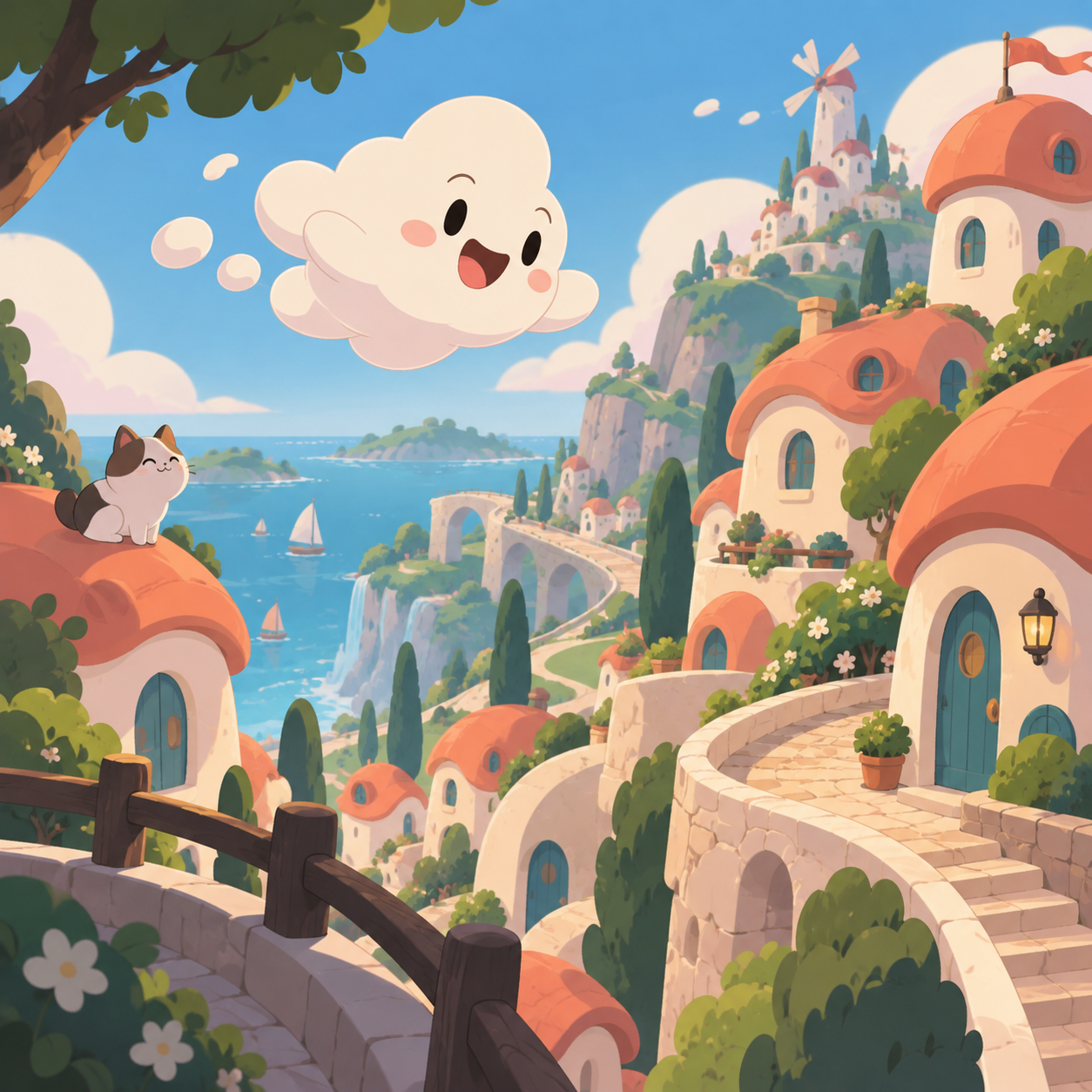
See an example · Cloud Parade
Loading example font…
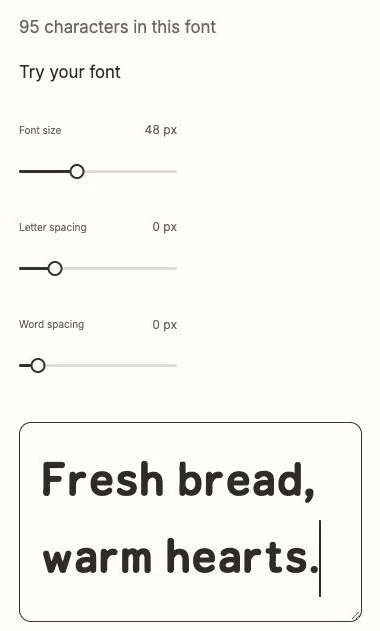
Cloud Parade was created from the reference image above. The typed words use the actual generated font. Open the example to compare the input and try more text.
Look at the qualities you want to carry into the new font, such as rounded shapes, narrow letters or a hand-drawn feel. A photograph of a scene with tiny text gives much less useful lettering detail.
02Make the reference easy to read
Choose a sharp JPG, PNG or WebP file up to 8 MB. Keep the lettering large enough to see clearly, with complete strokes and little surrounding clutter. Avoid glare, heavy shadows and compressed screenshots that blur the letters.
If your goal is to convert personal handwriting to a font, use the dedicated handwriting guide. Style image creates a new visual interpretation rather than a faithful reproduction of each source letter.
03Upload under Style image
Open the image creation page and choose Style image. Upload your reference and check that the intended lettering is visible. Add a description if you want to explain the use or emphasize a feature of the image.
Choose Style image, then select a file in the highlighted upload area.The selected public reference appears here. Check the image before submitting.
For example, ask for rounded, friendly lettering for a children’s book title. Keep the description consistent with the reference so the two inputs point toward the same result.
Choose Balanced or High quality and review the displayed credit cost. High quality requires an active Pro or Max subscription. The option you choose applies to this creation; it is not a manual editing step.
A real description task at the letter-shape stage. The marker highlights its current step.
Submit the task and follow its progress. Creation credits are charged when generation starts and are not automatically returned for a later failure. Check Pricing for the full rules before submitting.
When the result is ready, type the wording from your reference and a new sentence. Compare the overall letter shapes, proportions and feel, then check numbers and punctuation that may not appear in the image.
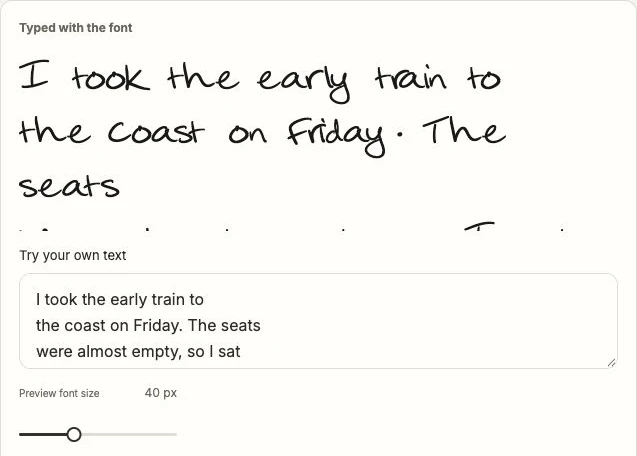
The actual published font in its example page. Type your own words in the highlighted field and adjust size and spacing.
The output is a new font, so it can differ from the reference. If you need the exact original commercial typeface, this workflow does not identify or retrieve it.
Open the completed task and choose Download TTF. Keep the downloaded file so you can install it or upload it to an app that accepts custom fonts. Check that app’s font requirements before planning your project.
The highlighted control downloads this published example. In your completed studio task, use Download TTF; example access rules do not describe your own font download.
Generated fonts may be used commercially. Make sure you have permission to use any reference images or handwriting you upload. Installing or uploading the font in another app is a separate step from creating it here.
Choose between a written description, a style image and your own handwriting. Create a custom font in FontKind AI, test it with your words and download the TTF.
 FontKind